


A contact form is the first thing built in a new shop – and the last thing anyone thinks about. It sits in the Shopping Experiences, it works, it sends mail to info@. Two months later the picture looks different: sales receives complaints, support receives pricing requests, nobody knows whether last week’s inquiry was ever answered, and the job application with the attached CV never arrived at all, because the form does not accept files.
That is not a misconfiguration. That is the point where a standard form reaches its limit.
This article covers what Shopware 6 provides out of the box, where the friction shows up in daily operations – and how the typical cases can be solved.
What the standard Shopware form does well
Let’s start fair: for the basic case, Shopware is well equipped. The Form CMS element lets you create a contact or newsletter form in the Shopping Experiences, drop it into a layout and define a recipient address – done. The mail template is translatable, captcha protection comes from the basic settings, and the output follows your theme.
For “get in touch” that is entirely sufficient. If you need nothing more, you need no plugin.
The friction starts at three points – and it does so in almost every shop that handles inquiries seriously.
Point 1: everything lands in one inbox
One recipient per form means, in practice, one shared mailbox where service, sales and accounting all run together. A human does the sorting – every morning, by hand, by forwarding.
The usual workaround is to build several forms: one for service, one for sales, one for complaints. That only moves the work to the customer, who now has to guess which of the three forms fits their request. And guessing means guessing wrong.
The clean solution is one form with rules behind it. That is exactly what the mail routes in our form toolkit are for. A route is a recipient plus a condition:
- Route “Service” →
support@your-shop.com, condition: select field Subject =Service - Route “Sales” →
sales@your-shop.com, condition: select field Subject =Quote - Route “Everything else” →
info@your-shop.com, no condition
Every submission is evaluated against the routes; each matching route sends its mail. The available operators are equals, not equals, contains, does not contain, empty and not empty – combinable across several fields. Each route can carry CC and BCC recipients as well, for example to loop in a team lead on complaints.
The customer still fills in one form. The sorting happens before the inbox, not inside it.
Point 2: the mail ends up in spam – or you cannot reply to it
A classic that costs a lot of time and is rarely understood.
To let staff simply hit “Reply” on a form notification, many solutions put the address the customer entered into the From header. Technically that means your server sends a mail claiming to come from customer@gmail.com. This is precisely the pattern SPF, DKIM and DMARC check for – and they classify it as spoofing. The result: the mail lands in the spam folder or is silently dropped. The inquiry is gone, and nobody notices.
The accepted standard for contact forms is different: the sender stays your shop address, and the customer’s address goes into the Reply-To header. Delivery is properly authenticated, and hitting “Reply” still addresses the customer directly.
In our plugin you simply pick, per mail route, the form field that supplies the customer address. If it holds no valid address at submission time, the mail goes out without a Reply-To header instead of putting delivery at risk.
A detail nobody notices in day-to-day business – until you work out how many inquiries never arrived because of it.
Point 3: no record, no history
As long as an inquiry exists only as an email, it is exactly as reliable as the mailbox holding it. It can land in spam, be deleted by accident, or sit untouched while a colleague is on holiday. And the question “how many product inquiries did we get last quarter?” simply cannot be answered.
That is why, with our toolkit, every submission is stored in the Shopware database in addition to the mail and is visible in the Administration – with all submitted fields, language, sales channel and timestamp. Each submission carries a status (new, read, answered), so a team visibly works through the same list. For reporting or handover to a CRM there is a CSV export.
The mail stays the fast channel. The database is the memory.
Forms people actually complete
So far this has been about what happens after submission. What matters just as much is that people submit at all.
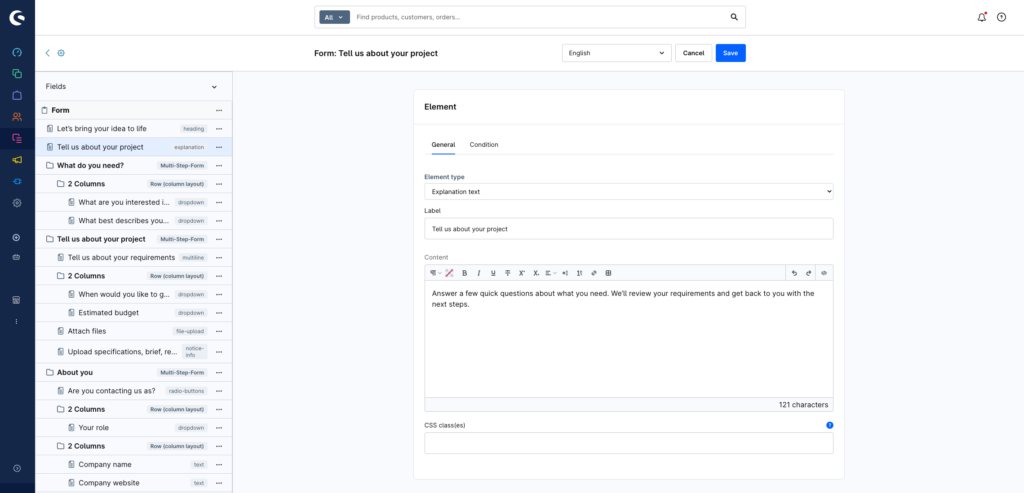
The most effective measure is not removing fields, but showing them only once they become relevant. Ticking “please call me back” reveals the phone field – until then it is out of everyone’s way. You configure this conditional field logic per field in the form editor, without a line of JavaScript.
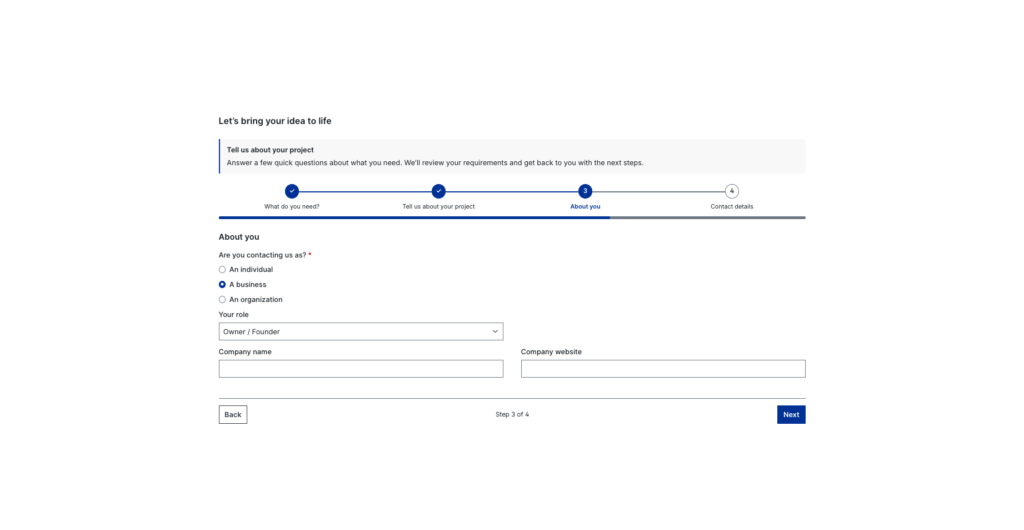
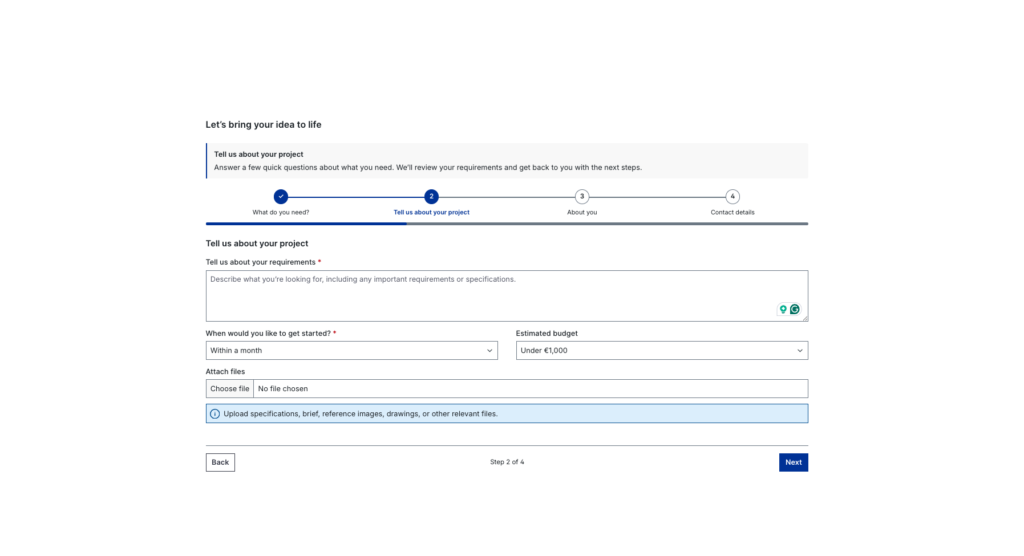
For longer forms – applications, configuration requests, complaints – the multi-step view helps on top: the form is split into steps with a progress indicator. Instead of an intimidating wall of 20 fields, the visitor sees three manageable sections.
Then there are the building blocks that make a form readable: 14 input types (text, multiline, number, number range, dropdown, checkbox group, radio buttons, toggle, date picker, salutation, email, phone, file upload, privacy consent) and 9 structural elements (headings, dividers, spacers, rich text, explanations, plus notice boxes in four levels). Fields can be placed side by side in rows and bundled into groups – which makes a form look like part of the page rather than a foreign object.
The specialised field types pay off on mobile in particular: an email or phone field opens the matching keyboard on a smartphone – and is validated server-side, not just in the browser.
File uploads work exactly as you would expect: CV, damage photo, print file. Which extensions are allowed is defined centrally in the plugin settings – the hint shown in the storefront and the server-side check come from the same source. Uploaded files are retrievable from the Administration only, never through a public URL.
Spam protection, by the way, stays yours: the form includes whichever captcha methods you have enabled in the Shopware basic settings. No second system, no additional third-party integration.
The case that pays off fastest: the product inquiry
Not every product can go into a cart. Products that need explanation, custom builds, tiered B2B pricing, “price on request” – in all of these the inquiry is the conversion point.
That is what the product inquiry form type is for: a form that appears on the product page automatically, without you touching every layout in the Shopping Experiences. Where it appears is controlled by conditions – by customer group (B2B customers only), by sales channel, for individual products, or for an entire product stream, e.g. “every article in the custom-build category”.
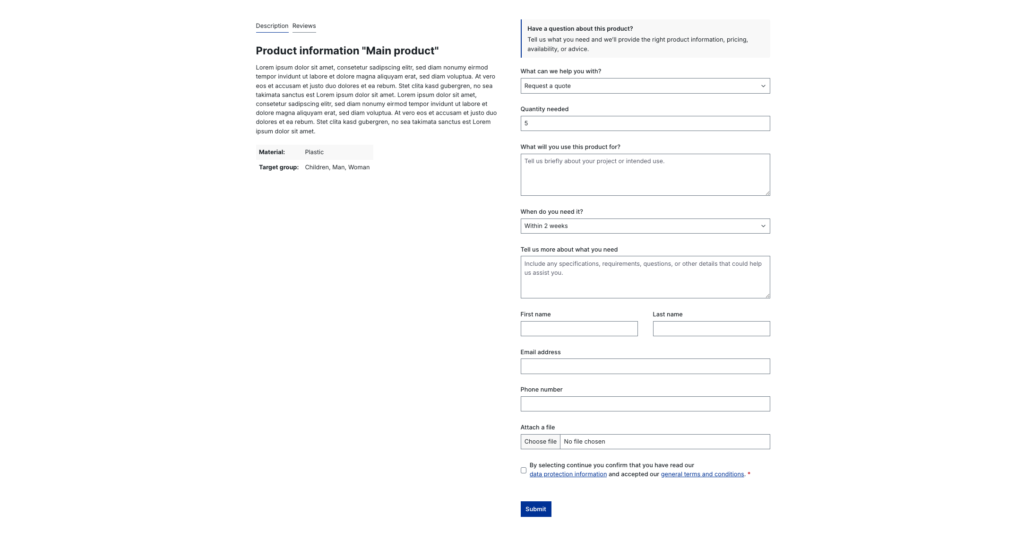
The product context travels with the submission automatically: your sales team sees which article the inquiry is about instead of having to ask.
And afterwards: the form as a trigger
A submission does not have to end with an email. On submit, the “Form submitted” event is dispatched in the Flow Builder – from there the process is yours:
- confirmation mail to the customer, in the language of their storefront (we ship the matching action, and a default flow is set up during installation)
- a notification into your team chat
- setting a customer tag to address prospects later in a targeted way
- handover to a CRM or ticket system via webhook
Mail templates get access not only to the complete list of submitted fields, but also to individual fields directly – useful for a meaningful subject line: “New inquiry from Anna Sample about item XY” instead of “New form submission”.
A note on data protection
Many shops solve more demanding forms with external services – Google Forms, Typeform and the like. That is quick to set up and, at the same time, means your customer data leaves the shop: you need a data processing agreement, a legal basis for the transfer and a paragraph in your privacy policy. For a contact form that is a remarkable amount of overhead.
With a solution inside Shopware, the data stays where your order and customer data already live. There is a dedicated field type for consent, linking to your privacy policy, and submissions are visible in the Administration – and therefore deletable in a targeted way when someone exercises their right to access or erasure.
Quick checklist for your form
- One form instead of three – let rules do the sorting, not the visitor.
- Reply-To instead of a forged sender – otherwise inquiries end up in spam.
- Reveal fields conditionally rather than dropping them.
- Split long forms into steps.
- Store every submission, don’t just mail it.
- Send a confirmation to the customer – it prevents the “did you get this?” follow-up.
- Test on mobile, not just on desktop.
Conclusion
Shopware’s standard form is a solid starting point. But as soon as inquiries turn into a process – with responsibilities, records, attachments and reporting – it lacks the tools, and the difference is paid for in working hours every single day.
Our Form Toolkit for Shopware 6 closes exactly that gap: 23 field and structural elements, conditional field logic, multi-step forms, mail routes with conditions, product inquiries on product pages, a submission inbox with status tracking and CSV export, plus full Flow Builder integration. Built for Shopware 6.7 and headless-ready, because all logic lives in dedicated routes.